


Clip Range:
Sample - clipped image (colors)
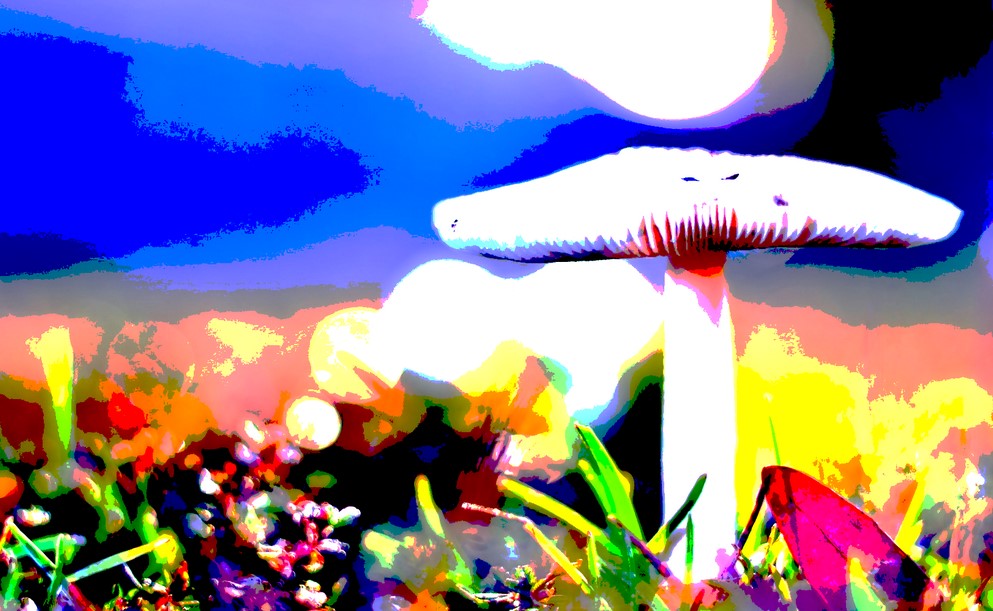
Clipping photo (color values)
Simple to understand When the color values in the photo go beyond the range, clip them. Drop your photo into the program, adjust the clipping range in the slider control, and then click the clip button to do the clipping procedure on the selected photo.
Clipping in digital photography
Clipping occurs in digital photography as a result of collecting or processing an image in which the intensity in a specific region goes beyond the lowest and maximum intensity that may be represented. More info
Quick processing
The photo clipping procedure is done out in the client browser using jquery and compatible plugins, thus there is no unnecessary waiting time like there is with photo upload or download in our application.
Free to use
Our app is entirely free to use. It is a complete version with no hidden fees, no registration necessary, no demo versions, and no other restrictions. There are no limitations to the amount of photographs that may be clipped.
Security guranteed
You may use our tool with trust since we do not upload your photo to our server for the clipping process, so your photographs are completely safe and no one, including us, can access them.
Easy to use
As previously said, the tool is quite simple to use; simply drop your photo, change the clipping range on the slider, and then click the clip button to preview and save the image.
Save option
You may simply download the clipped photos in our tool by clicking the Download option at the bottom of the tool, which is accessible in both .jpg and .png formats. When the clipping process is finished, simply click the appropriate photo format option to download it.
No limit
There is no limit to the amount of photographs you may clip using our program. To utilize this function, you do not even need to join up. We don't have any limitations or anything, and we always keep the same degree of accuracy.
About the Photo Color Clip Tool
This tool clips the colour levels of a picture. Choose how many colours to clip, run the effect and download the result as PNG or JPG. It is useful for stylised, high-contrast looks. If you want to cut a picture to a smaller size, use the Crop Image tool instead.
How it works
- Select your image.
- Set the number of colours to clip.
- Click Clip Photo and check the preview.
- Download the result as PNG or JPG.
Popular uses
- Create stylised graphic effects.
- Experiment with colour ranges before posterising.
- Prepare images for print-style artwork.
How do I clip the colours of a photo?
Select the image, set the number of colours to clip, press Clip Photo and download the result.
Small clip values change the picture subtly while high values flatten it into a few strong colour bands.
Is clip the same as crop?
No. Clip changes colour levels. To cut a picture to a smaller area use the ToolXoX Crop Image tool.
How is clipping different from posterize?
Both reduce colour detail, but they do it differently. Clipping limits the range of colour levels in the picture, which can produce harsh, graphic results and lost highlights or shadows. Posterize groups smooth gradients into a set number of flat bands. Try both on the same photo and keep the one you prefer.