

SeeDream Image Generator - Free Online Tool


Write your prompt (NSFW Prompt not supported)
Model
Aspect Ratio

Waiting in queue...

Your request is being processed.

Status: - Queue: -

How to Instantly Generate Images with SeeDream

Create images from a text prompt or remix a photo with SeeDream on ToolXoX. Choose SeeDream 4.0, 4.5, or 5.0 for text to image, or upload a photo for image to image.

Features:
1. SeeDream 4.0, 4.5, and 5.0 for Text to Image
2. Image to Image editing
3. No sign-up
4. Queue progress while generating
5. Download without a watermark
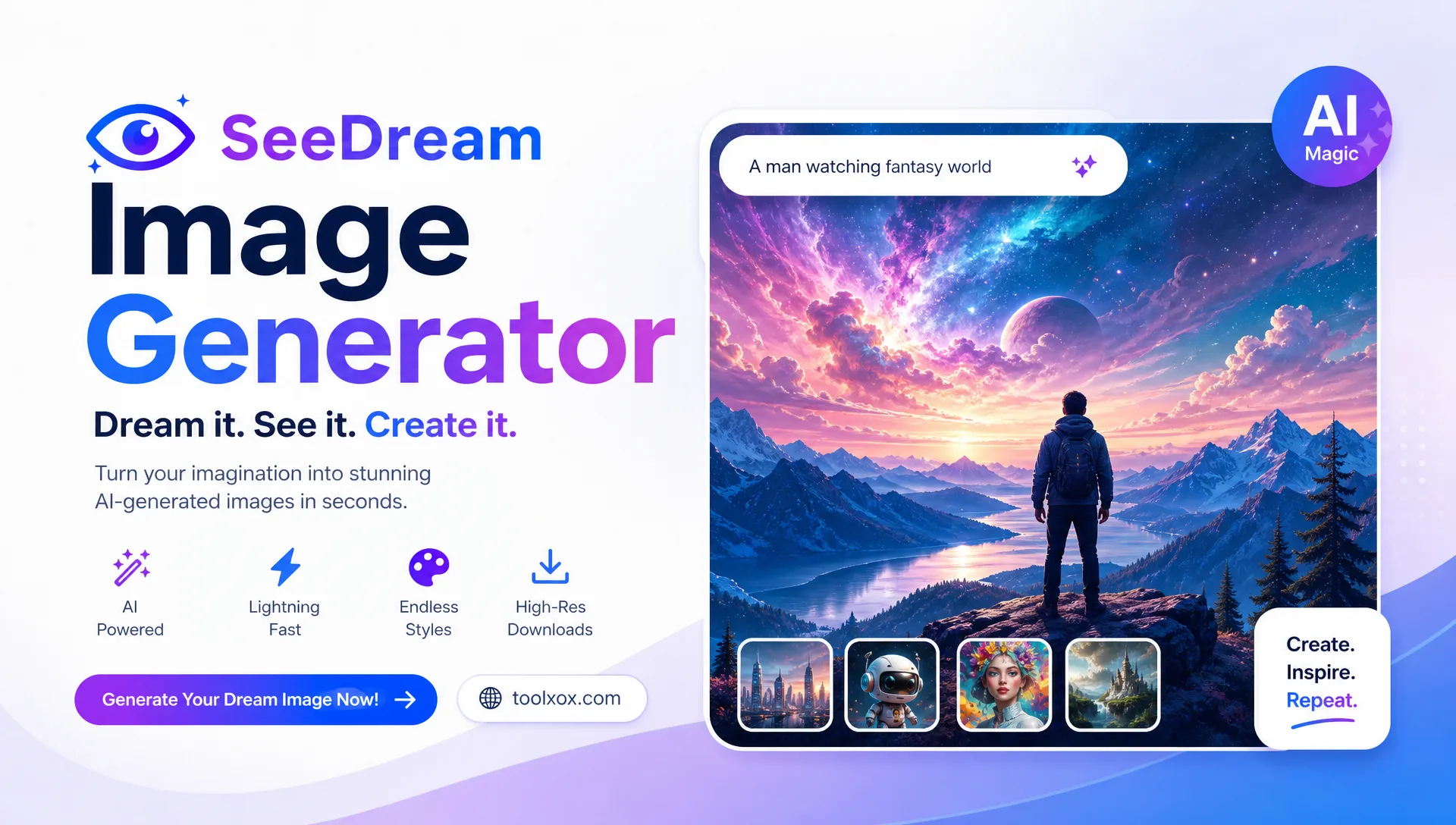
SeeDream image generator online free

What is SeeDream Image Generator?

SeeDream Image Generator is a free ToolXoX image tool. Use Text to Image with SeeDream 4.0, 4.5, or 5.0, or Image to Image to edit a photo you upload.

How does the SeeDream Image Generator work?

Choose Text to Image or Image to Image. For text, pick a SeeDream model, write a prompt, and generate. For image to image, upload a reference photo and describe the change.

Can I use reference images for image-to-image?

Yes. Image to Image requires one JPG, PNG, or WEBP file up to 10 MB. SeeDream uses that photo plus your prompt to edit the image.

Is SeeDream Image Generator free on ToolXoX?

Yes. It is free to use with no sign-up. Generate and download images for personal and creative projects without a watermark.

About the SeeDream Image Generator

SeeDream turns text prompts into detailed images, and in Image to Image mode it can transform a reference picture (JPEG, PNG or WEBP up to 10MB). Pick the model and aspect ratio, describe the scene and download the picture.

How it works

  1. Choose Text to Image or Image to Image (upload a reference image).
  2. Write your prompt.
  3. Select the model and aspect ratio, then click Generate.
  4. Wait in the queue and download your picture.

Popular uses

  • Illustrations and concept art.
  • Social media graphics.
  • Product and mockup ideas.

How do I use Seedream?

Enter a detailed prompt and generate the image.

Choose the aspect ratio before generating; asking for a vertical picture in the prompt does not replace choosing it in the settings.

What do the model options change?

Different models trade speed against detail and style. The lighter option returns pictures faster and suits quick drafts, while a fuller model usually gives better text, anatomy and fine detail. Draft with the lighter option and switch models for the final version.